
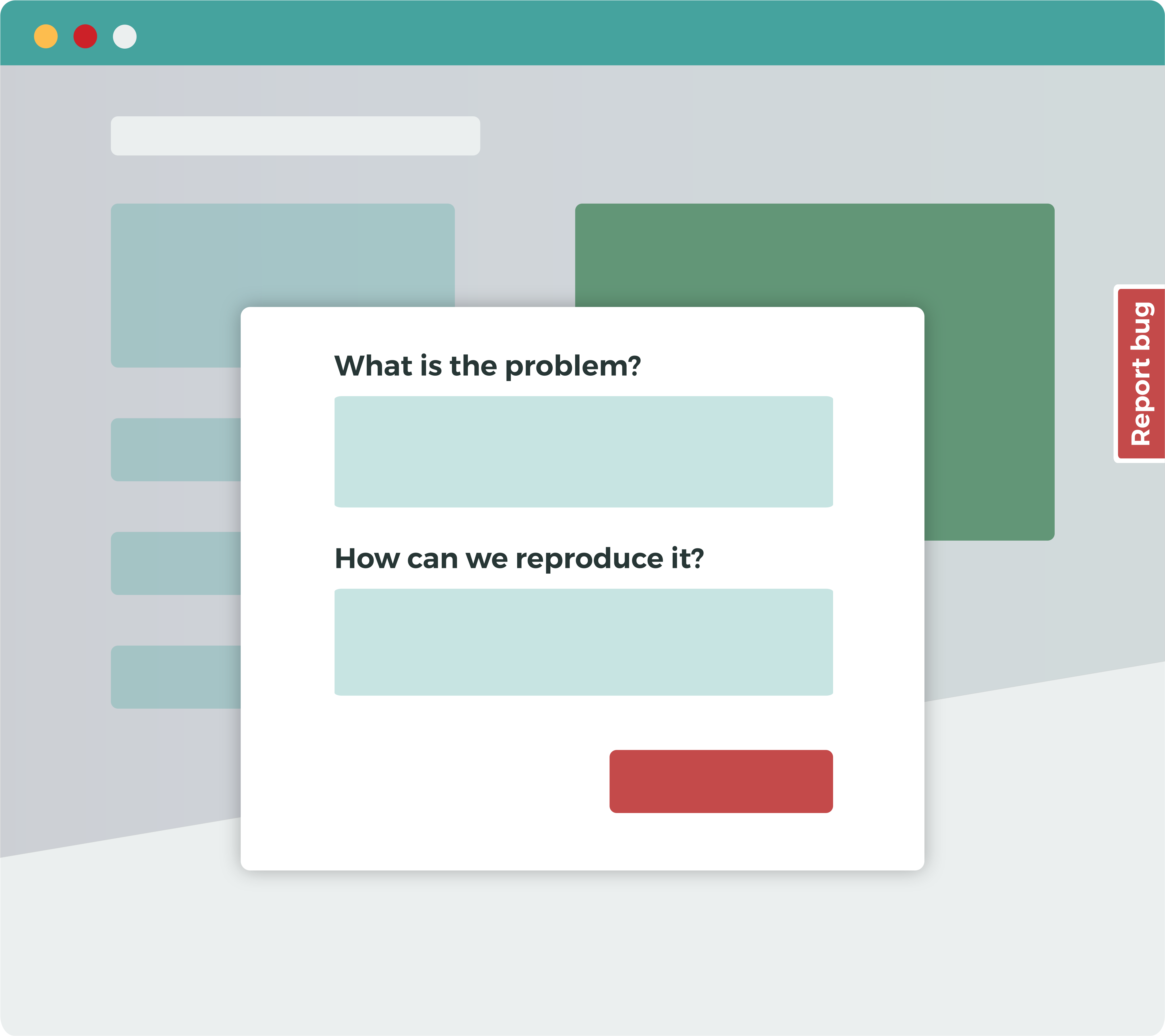
A feedback button is a small tab that sits on the edge of your website, web app or online course. When a visitor clicks it, a short form opens so they can report a problem or share an idea without leaving the page.
The short answer: to add a feedback button to your website, sign up for a feedback tool, create a feedback form, then paste the tool’s code snippet into your site just before the closing </head> tag. The button appears on every page that includes the snippet. On most sites it takes a few minutes.
This guide walks through each step, shows how to do it on the most popular website builders, and covers what to look for in a feedback button tool.
- How to add a feedback button to your website, step by step
- Adding a feedback button on popular platforms
- How do feedback buttons work?
- What are the benefits of using a feedback button?
- Where can you use a feedback button?
- How can you use a feedback button?
- How are feedback button tools different?
- How much feedback will you get?
- What feedback form will work best for you?
- How can you improve the performance of feedback buttons?

How to add a feedback button to your website, step by step
These steps use Saber Feedback, but most feedback button tools work the same way.
Step 1: Sign up for a feedback tool
Create an account with the feedback tool you want to use. Saber Feedback has a 30-day free trial with no credit card required.
Step 2: Create a feedback form
In the Saber Feedback app, click New Feedback Form and give it a name. The name is only for you; visitors won’t see it.
When you click Create Form, you get a feedback form and a feedback button that opens it. You can change the questions, the button’s label, color and position, and the language at any time.
Step 3: Paste the code snippet into your website
The app shows you a short snippet of JavaScript, called embed code. Copy it and paste it into your website’s HTML just before the closing </head> tag, then save and publish your site. It looks like this:
<!-- Saber Feedback button -->
<script type="text/javascript">
    (function () {
        window.Saber = {
            apiKey: '[YOUR API KEY HERE]',
            com:[],do:function(){this.com.push(arguments)}
        };
        var e = document.createElement("script");
        e.setAttribute("type", "text/javascript");
        e.setAttribute("src", "https://widget.saberfeedback.com/v2/widget.js");
        document.getElementsByTagName("head")[0].appendChild(e);
    })();
</script>
<!-- End of Saber Feedback button -->
If your site uses a shared header or template, paste the snippet there once and the button appears on every page. If you only want the button on some pages, paste it into those pages only.
Step 4: Check the button and send a test
Open your website. You should see the feedback button on the side of the page. Click it, send yourself a test report, and check it arrives where you expect, whether that’s your inbox, the Saber Feedback dashboard, or a tool like Jira or Slack.
If the button doesn’t appear, clear your site’s cache and reload. If your site uses a page accelerator such as Turbolinks, paste the snippet before the closing </body> tag instead.
This video shows the whole process:
Adding a feedback button on popular platforms
If you don’t edit your site’s HTML directly, here’s where the code snippet goes on common platforms.
WordPress
Install the free Saber Feedback Button plugin from your WordPress dashboard (search for “Saber Feedback Button” under Plugins > Add New), activate it, and enter your API key on the plugin’s settings page. You don’t need to touch any code. Full steps are in our WordPress installation guide.
Shopify
In your Shopify admin, go to Online Store > Themes, open the theme code editor, and edit theme.liquid. Paste the snippet just above the closing </body> tag and save. Our Shopify installation guide has screenshots, and there’s more on feedback buttons for Shopify stores.
Wix
In your Wix dashboard, go to Settings > Custom Code, click Add Custom Code, paste the snippet, choose All pages, and place it in the Head. Wix only allows custom code on sites with a premium plan and a connected domain.
Squarespace
Paste the snippet into the Header field of Squarespace’s Code Injection settings, which you’ll find in the site’s advanced or developer settings. Code Injection isn’t available on Squarespace’s lowest-priced plan.
Webflow
In Site settings > Custom code, paste the snippet into the Head code box, save, and republish your site. Webflow needs a paid site plan for custom code.
Google Tag Manager
If you manage scripts with Google Tag Manager, create a new tag of type Custom HTML, paste the snippet, set the trigger to All Pages (or only the pages you want), and publish the container.
Online courses and learning management systems
Saber Feedback works on most learning management systems. See our guides for Moodle and other LMS platforms.
Using your own button or link
You don’t have to use the standard floating button. In Saber Feedback’s button settings you can hide the default button, then open the feedback form from any link, button or menu item on your site with one line of JavaScript:
Saber.do('open');
This works well for a “Report a problem” link in your footer or a question mark icon in your navigation. The JavaScript API documentation has the details.
How do feedback buttons work?
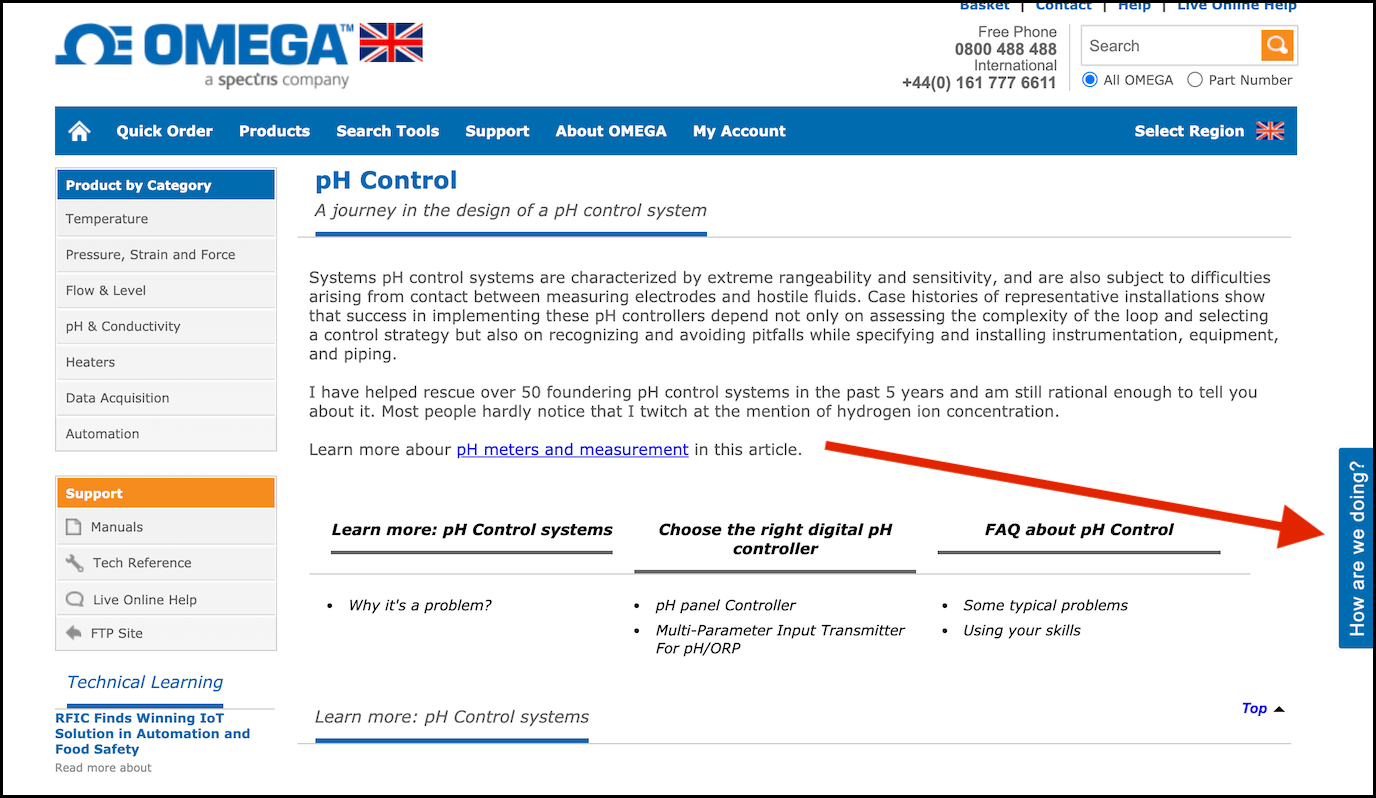
Feedback buttons sit at the side or bottom of your web page. When someone clicks one, a feedback form slides in or pops up over the page.
These forms are usually short: a text box, perhaps a rating or a category, and often an option to attach a screenshot. Good tools also capture technical details automatically, such as the page address and the visitor’s browser, so you don’t have to ask for them.
What are the benefits of using a feedback button?
- Shows your customers that you welcome feedback and take it seriously
- Lets people give feedback instantly, without leaving the page to hunt for your contact details
- Stays visible but out of the way, so it doesn’t interrupt what visitors came to do
- Keeps feedback in a private channel you control, rather than on social media or review sites
- Catches bugs, broken links, content mistakes and usability problems that hurt your conversion rate
- Shows you what customers want, which helps you decide what to build or fix next
In this example, the feedback form helps you spot usability problems:
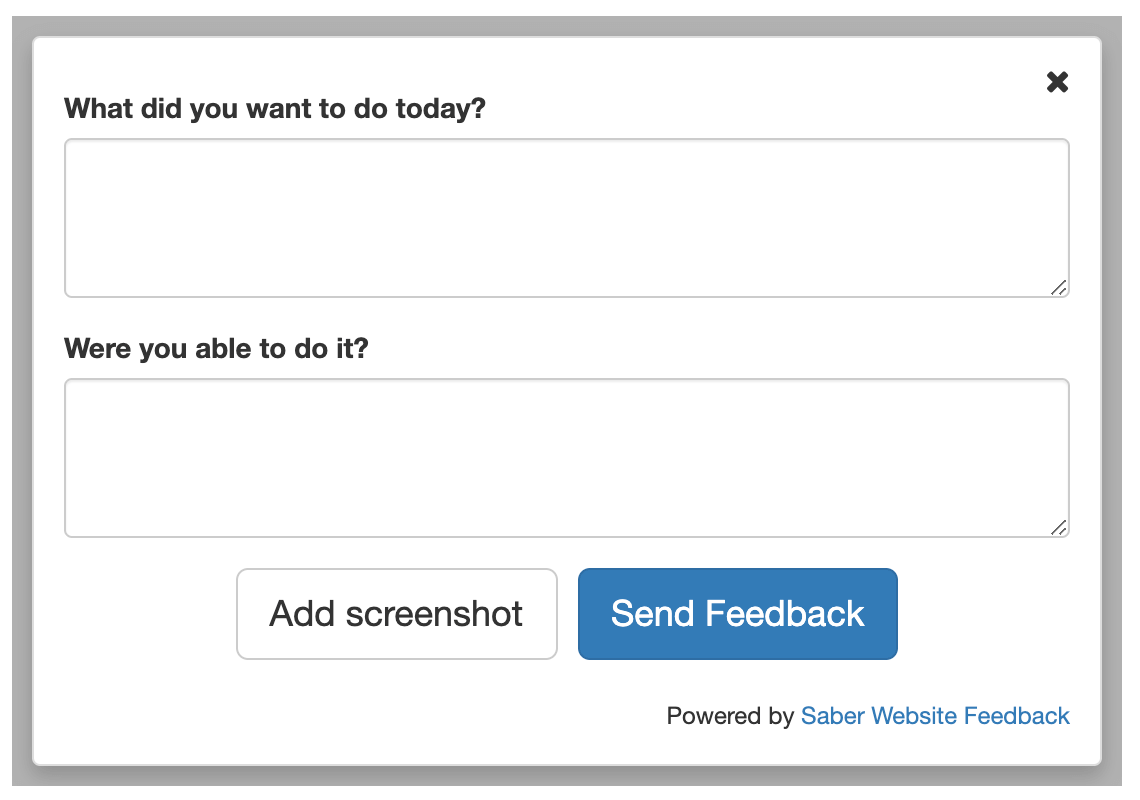
A feedback button can also save your support team time. Because each report arrives with a screenshot and technical details, your team spends less time going back and forth with customers. Here’s how a feedback button improves the support experience in Zendesk.
Where can you use a feedback button?
You can use a feedback button on websites, web apps, customer portals, staging and beta sites, and online courses.
This feedback button is on the technical reference section of the Omega website:
Some feedback buttons can be shown in different languages, so you can collect feedback from all your customers, not just those who speak English.
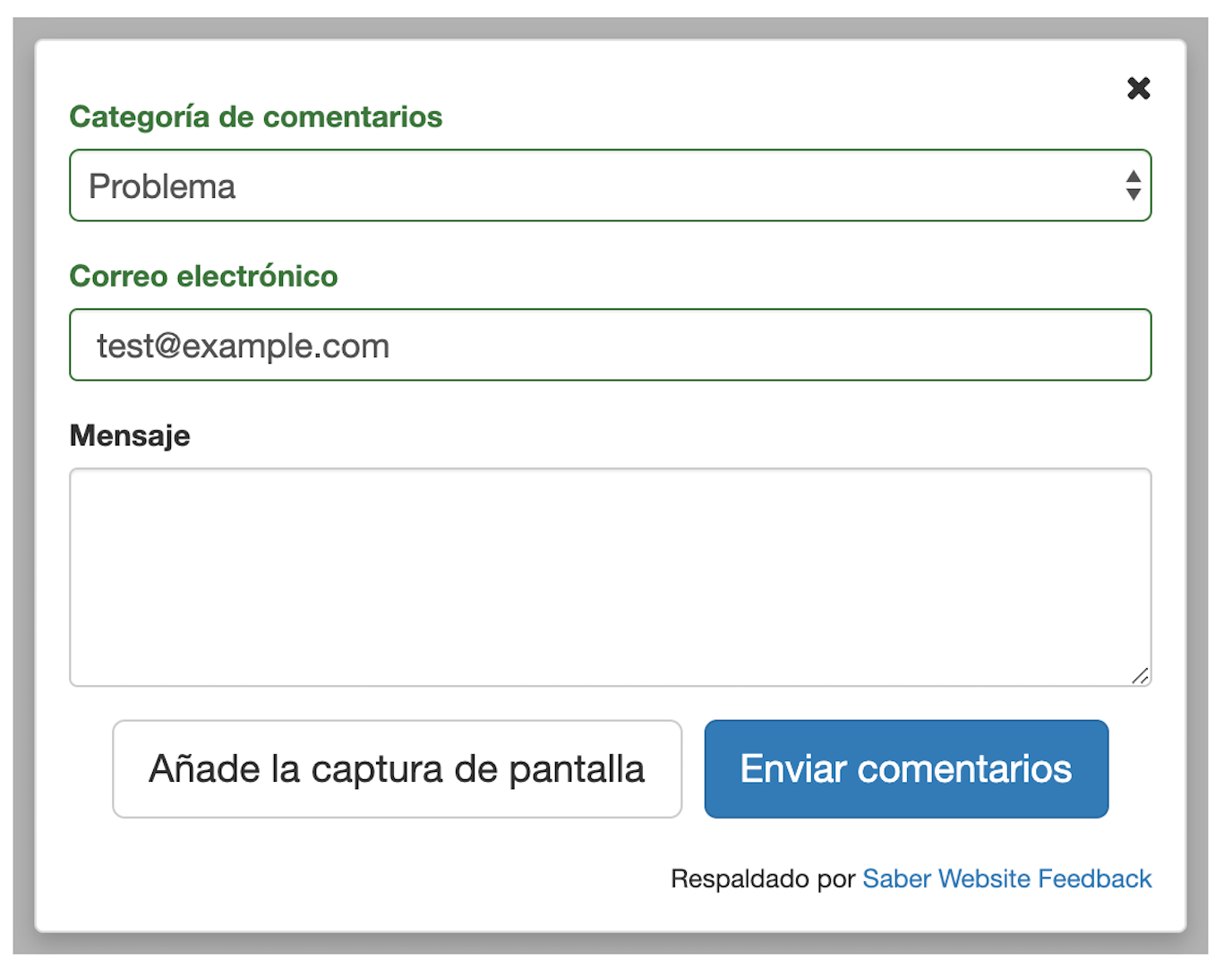
How can you use a feedback button?
You can put a feedback button on every page of your website, web app or online course, so users can always reach you wherever they are. That approach needs a fairly general form like this one:
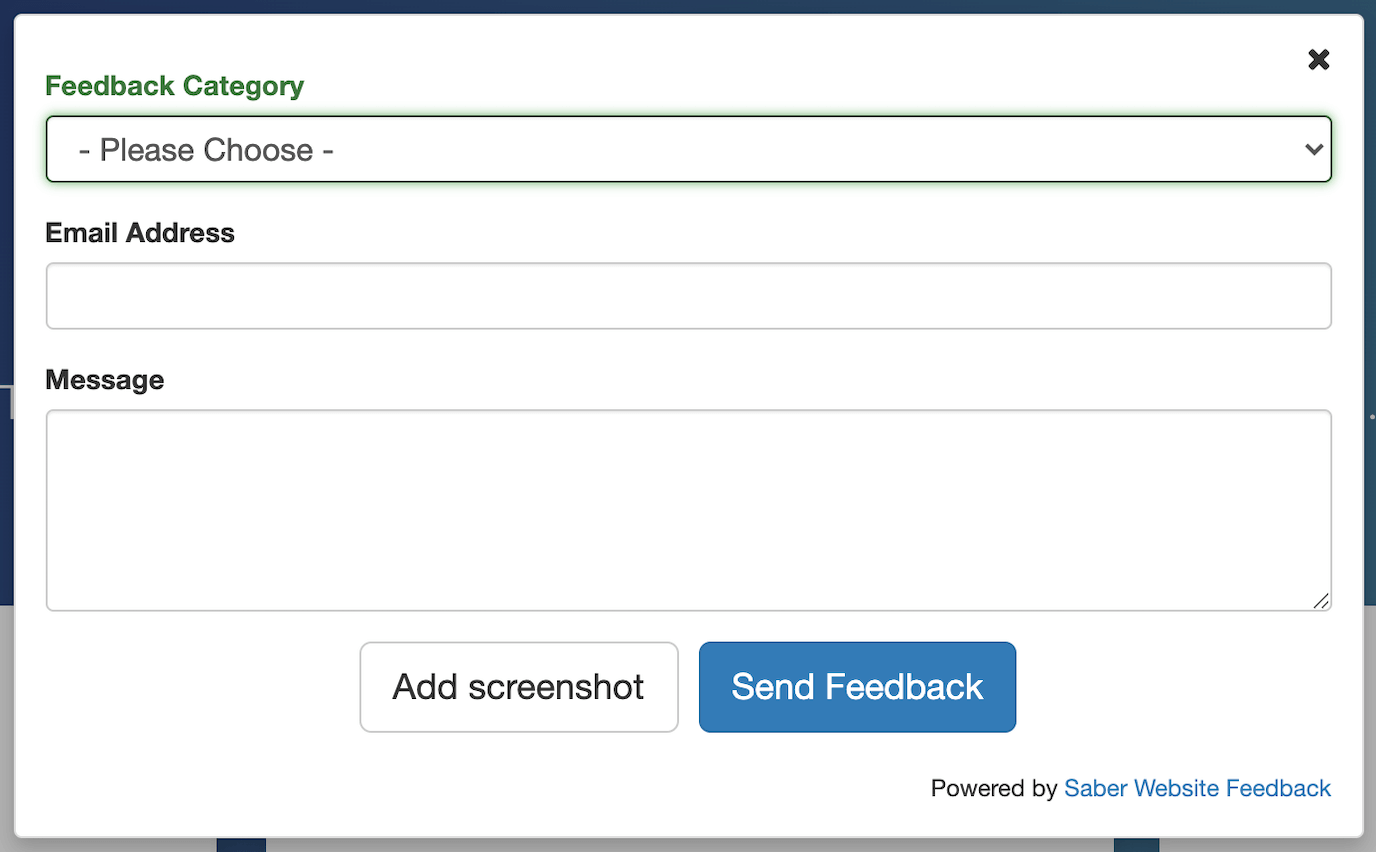
Many companies get better results by putting feedback buttons on specific pages where customers are trying to complete a task. Here are some feedback button examples.
Confused.com wants visitors to get a car insurance quote. The feedback button is there in case they run into problems along the way.
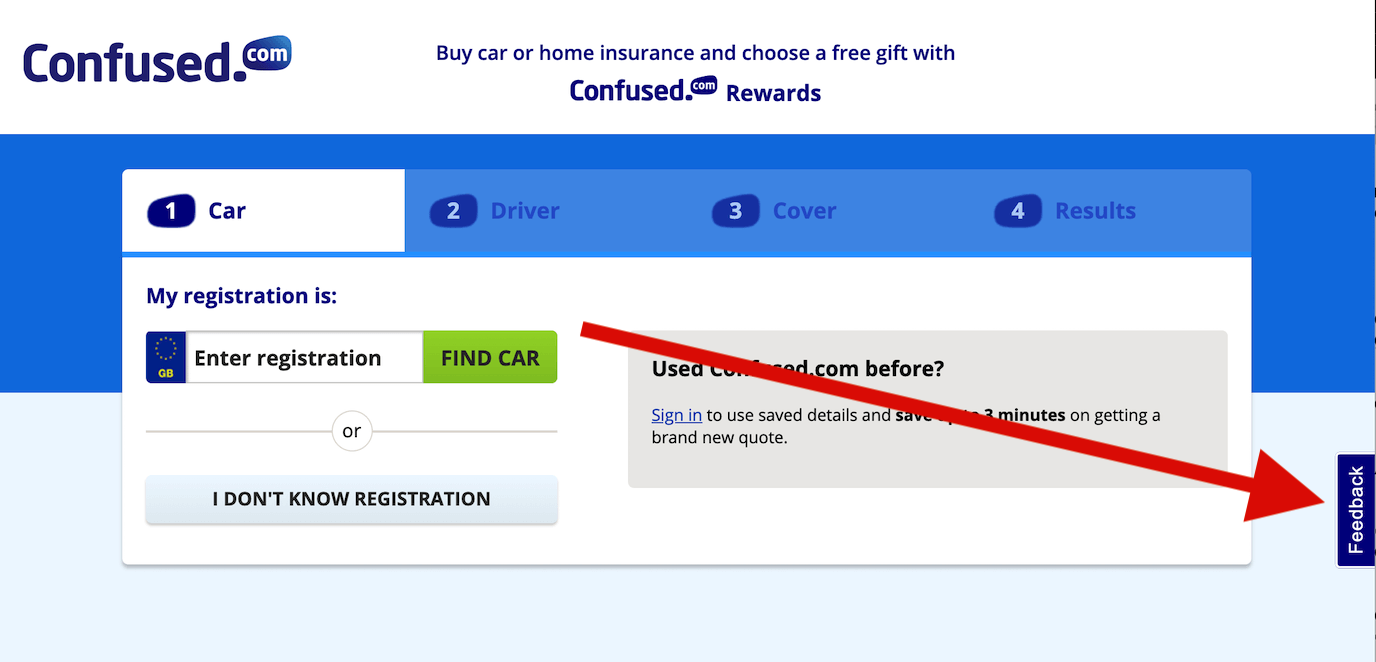
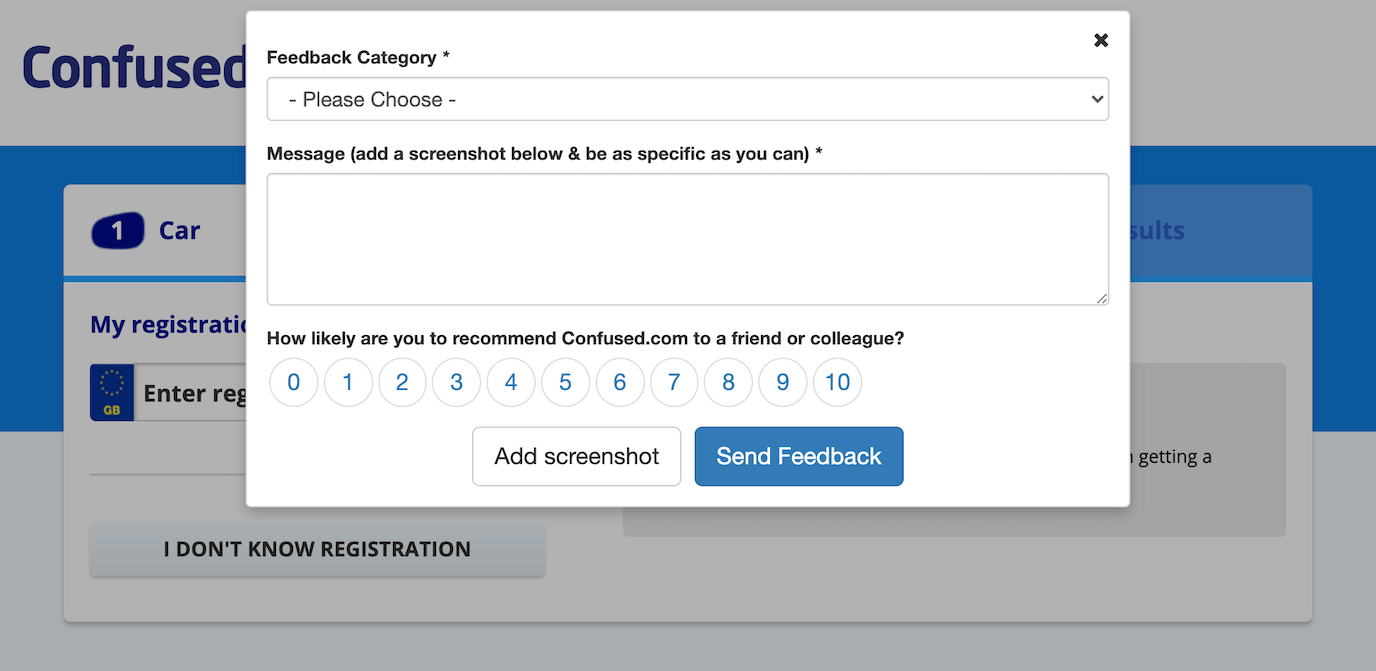
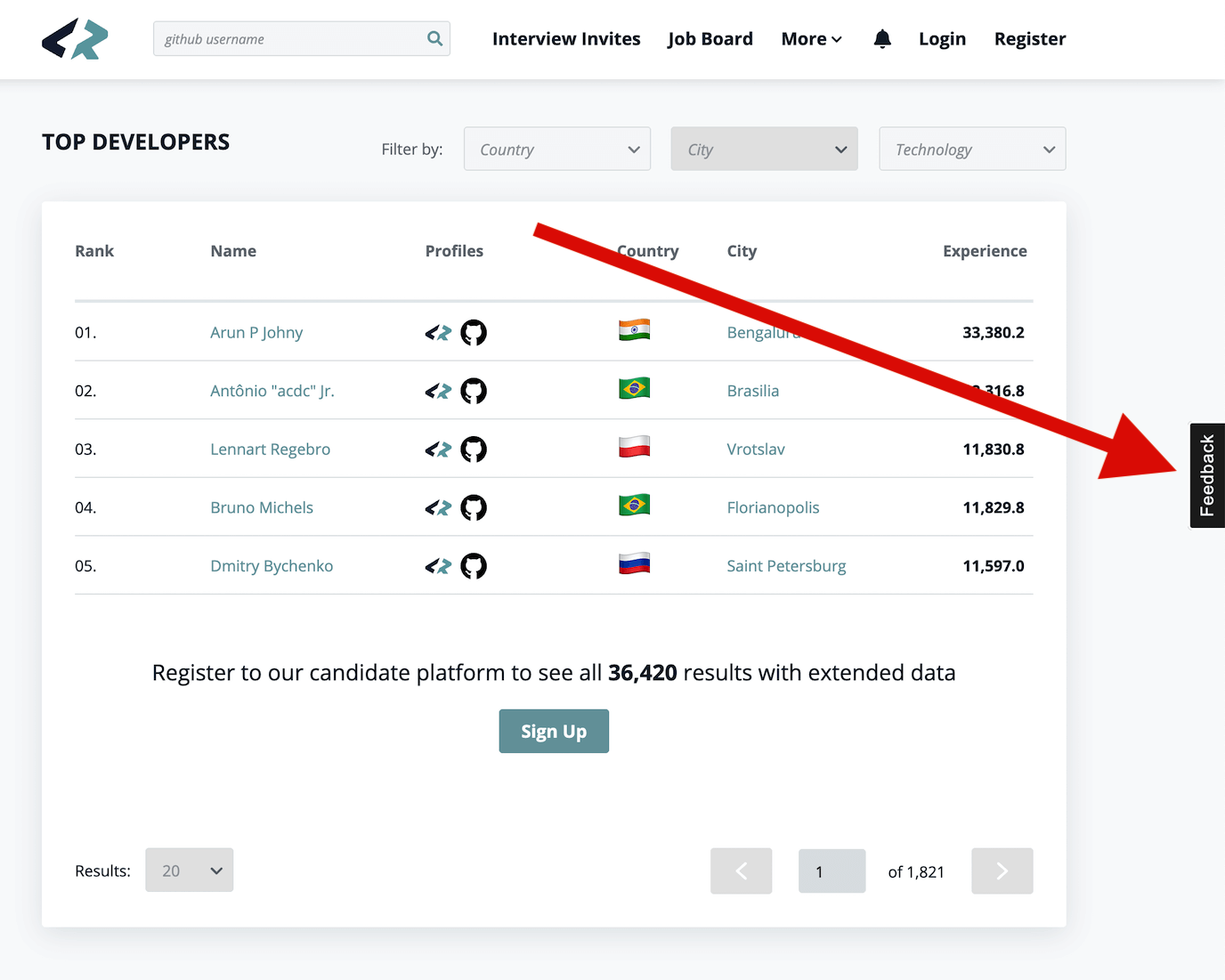
CodersRank wanted an easy way for users to give feedback on its “Top Developers” leaderboard. It doesn’t show the button on its marketing pages, because casual visitors give different feedback from engaged developers focused on a specific goal.
In this case study, Christopher Roberts, learner success manager at AICPA, explains how they use a feedback button in their online learning programme:
Students can give feedback on their landing page, which is a dashboard area, or throughout the learning. So everywhere in the programme they have the ability to give feedback. We use one form that autopopulates a student’s email address, which they use to login to our programme. The form has a text box where they can fill in their comments and gives them the ability to take a screenshot.
How are feedback button tools different?
Most feedback buttons share the same basic idea, but the tools behind them differ in ways that matter to you and your users.
Screenshot feedback
Some tools let users take a screenshot of the page they’re on. Screenshots remove guesswork, make it quicker for users to explain a problem, and save your team time.
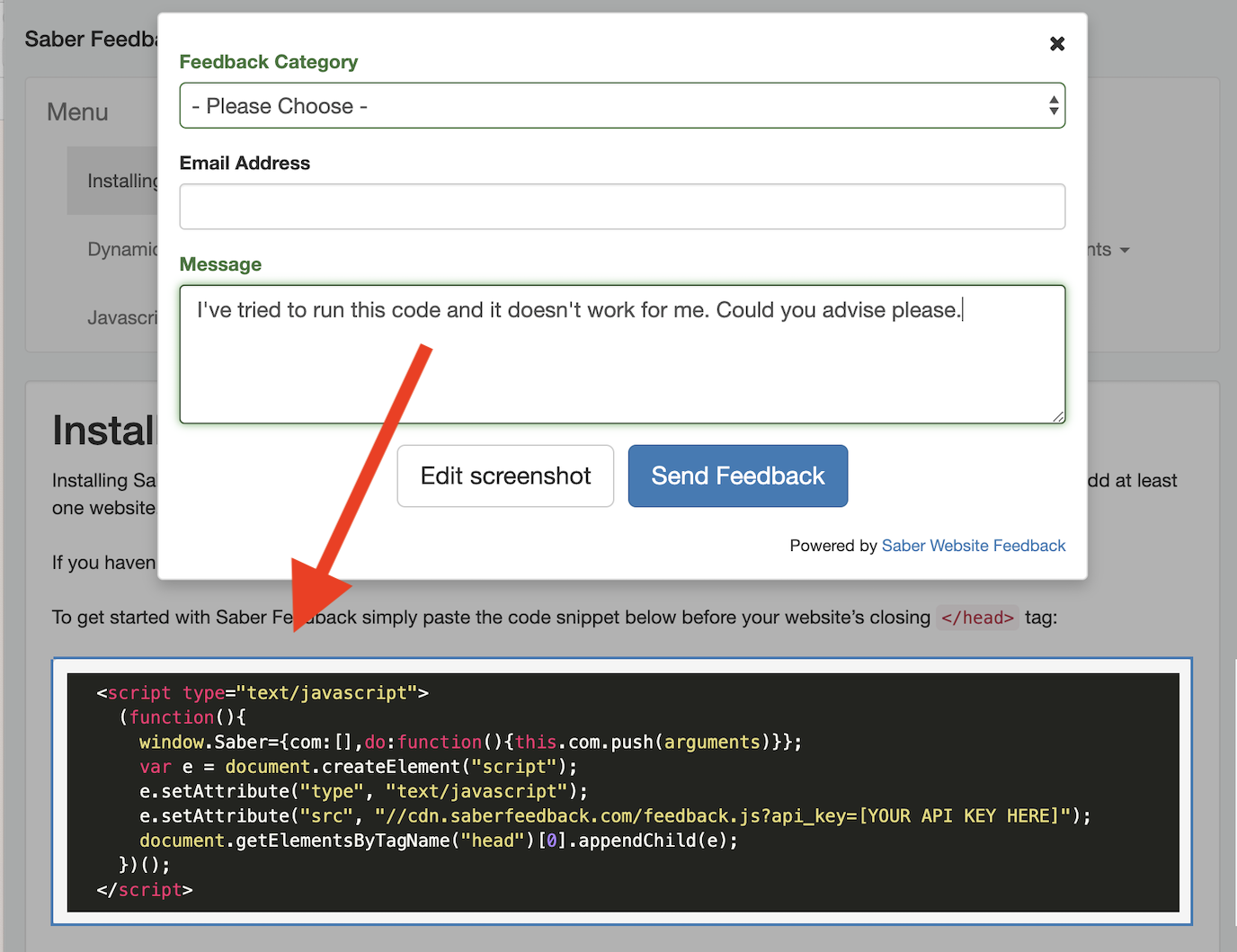
Our article on visual feedback tools covers this in more detail.
Technical details
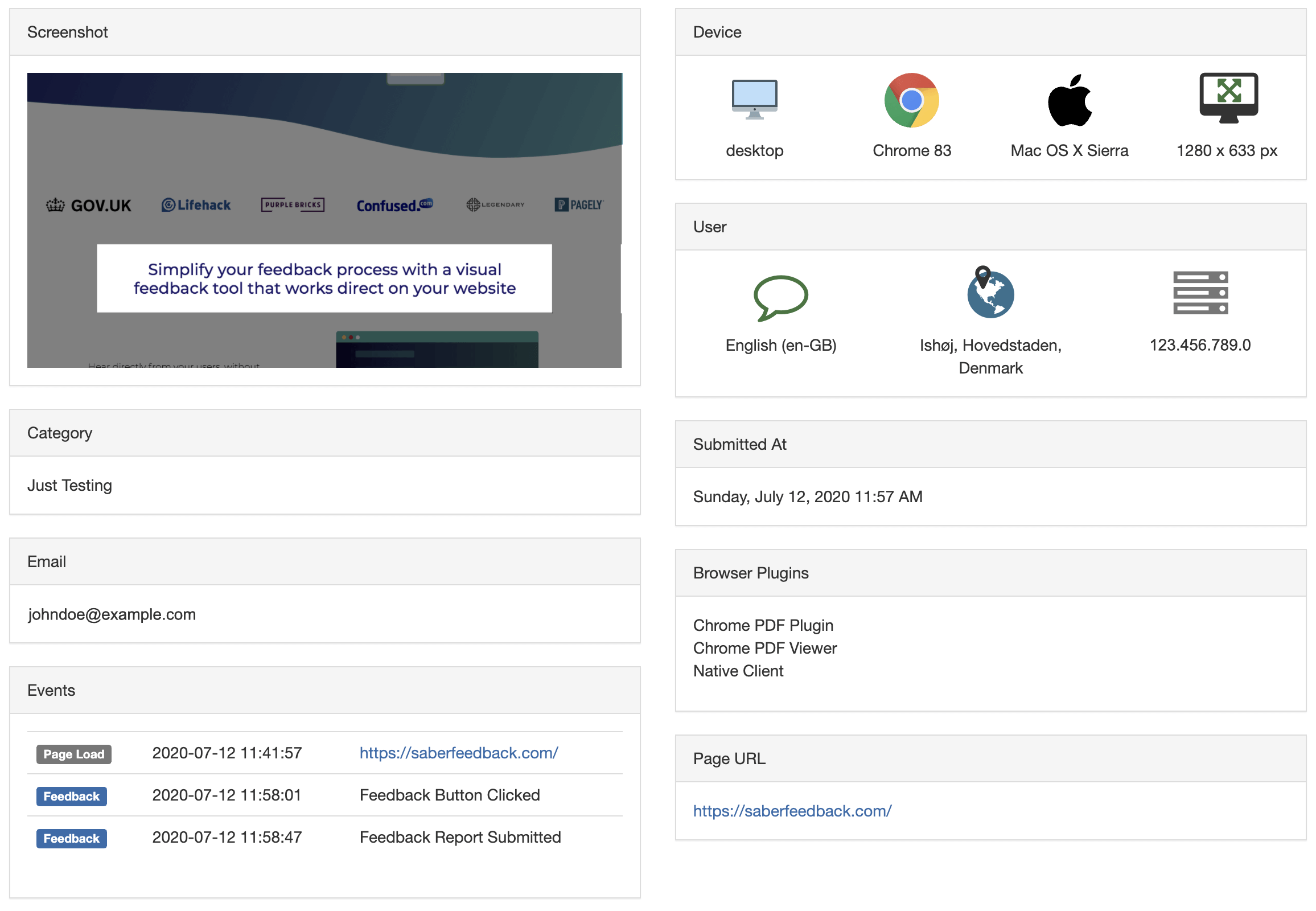
All feedback button tools let you customise the form. The better ones also capture details that help your team diagnose and fix problems, such as:
- The user’s browser, device and browser plugins
- The user’s IP address and location
- The page address
- When the feedback was submitted
- The user’s email address
- JavaScript events that happened before the feedback was sent
Where it works
Some feedback button tools work on any website. Others only work in certain environments: many, for example, only work on WordPress sites.
Saber Feedback works on almost any website or web app, including WordPress, Shopify, and most learning management systems. It doesn’t work inside emails or native mobile apps. Tools that do cover email and mobile apps usually rely on surveys triggered by rules, rather than a button the user chooses to click.
Where feedback goes
Feedback button tools differ a lot in what happens to feedback after it’s sent. Look for one or more of these:
- A dashboard with search, export and reporting
- Email notifications to the people who need to see it
- Integrations that send feedback straight into the tools your team already uses, such as Jira, Trello, GitHub, Zendesk or Slack
Saber Feedback supports all three, with integrations for Jira, Trello, GitHub, GitLab, Asana, Zendesk, Slack, Zapier and more. Some tools support only one.
How much feedback will you get?
That depends mostly on your traffic and the kind of site. Across Saber Feedback accounts, the median is one feedback submission for every 2,961 page views. Staging and test sites get far more (one per 589 page views), because testers are looking for problems. Public websites with mostly casual visitors get far less (one per 28,886 page views).
So if your site gets a few thousand page views a month, expect a handful of reports rather than hundreds. Our guide to whether you need a user feedback tool goes into this in more detail.
What feedback form will work best for you?
You can create a general feedback form, or specific forms that ask for one kind of feedback.
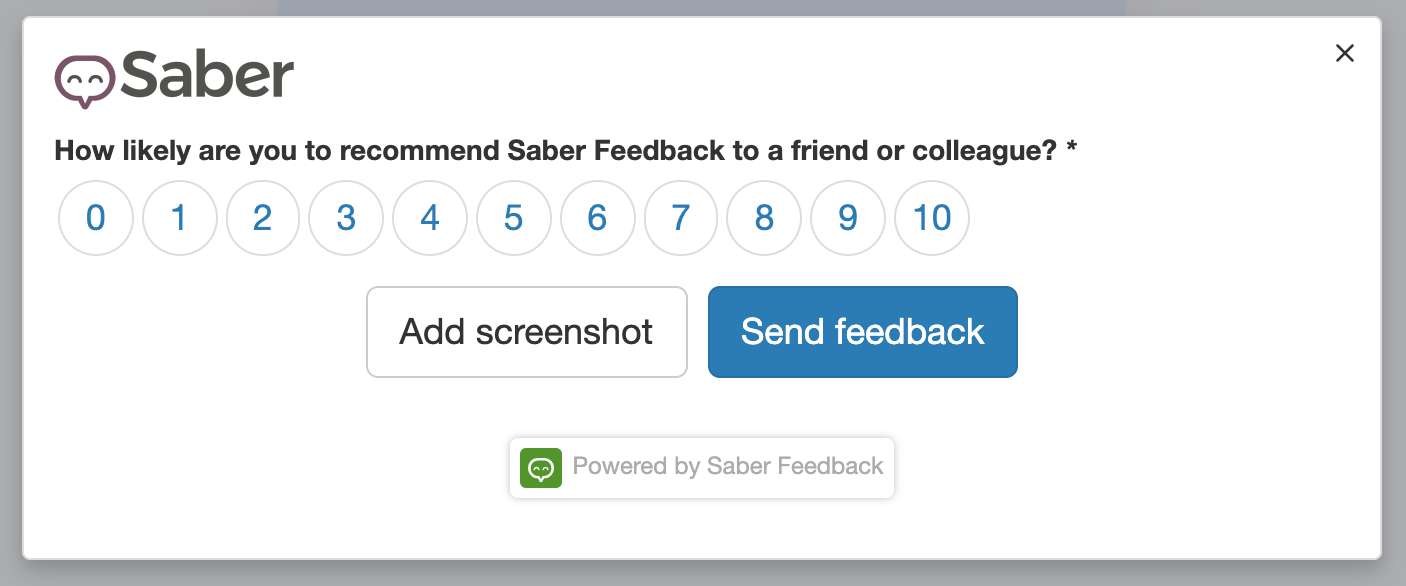
For example, you might want to track customer satisfaction:
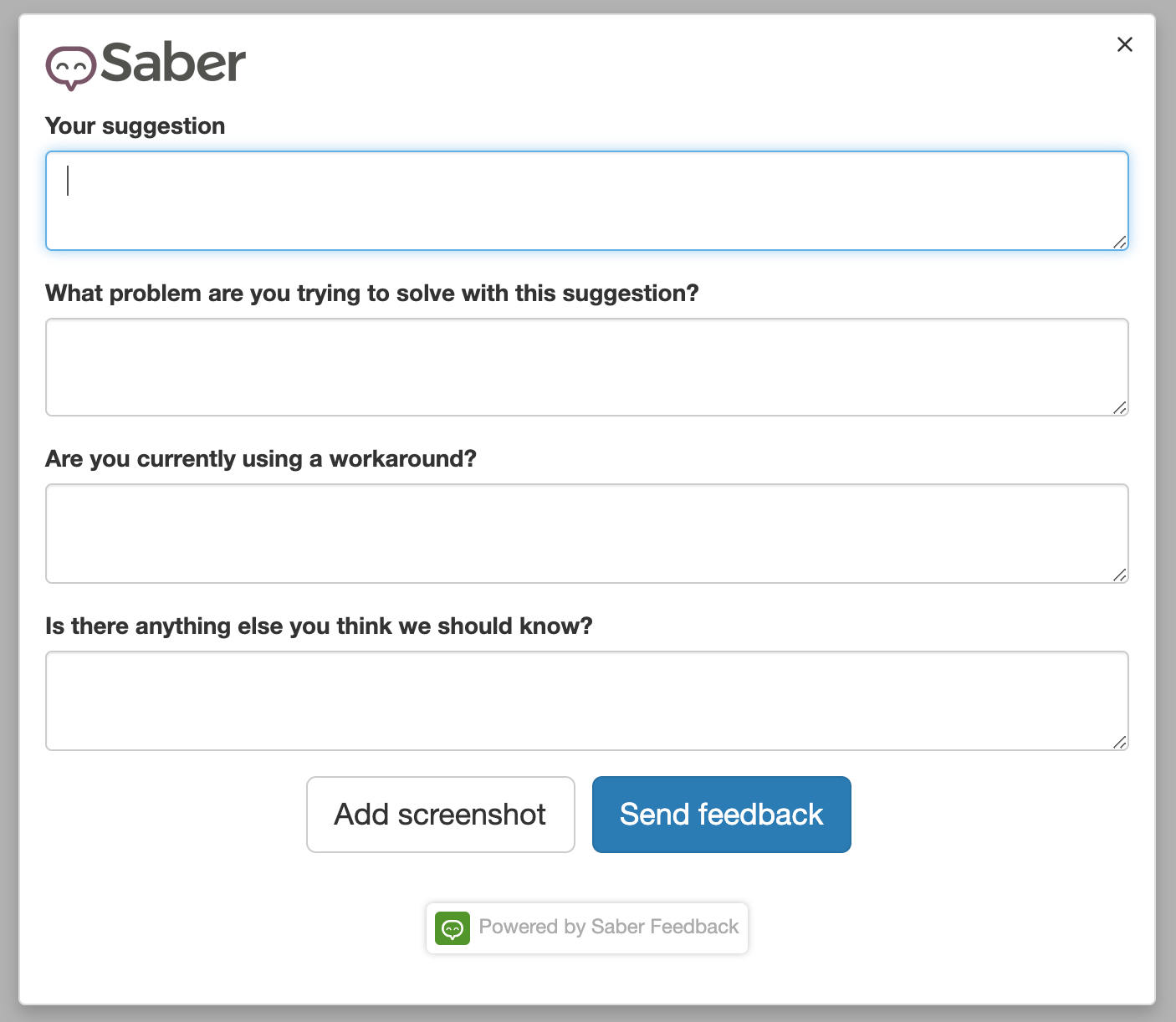
Or ask for feature requests and suggestions:
Here are 5 website feedback form templates to get you started.
How can you improve the performance of feedback buttons?
To get more feedback, and more useful feedback, try:
- Using a clear label instead of a faint “Feedback” tab. “Report a problem”, “Report a bug” or “Suggest an idea” tell people exactly what the button is for
- Giving the button a color that contrasts with your site, so people notice it
- Using a specific form on pages where users complete a specific task, rather than one general form everywhere
- Trying a different position: a tab at the bottom of the page, or a question mark icon in your navigation, can work better than the side of the screen
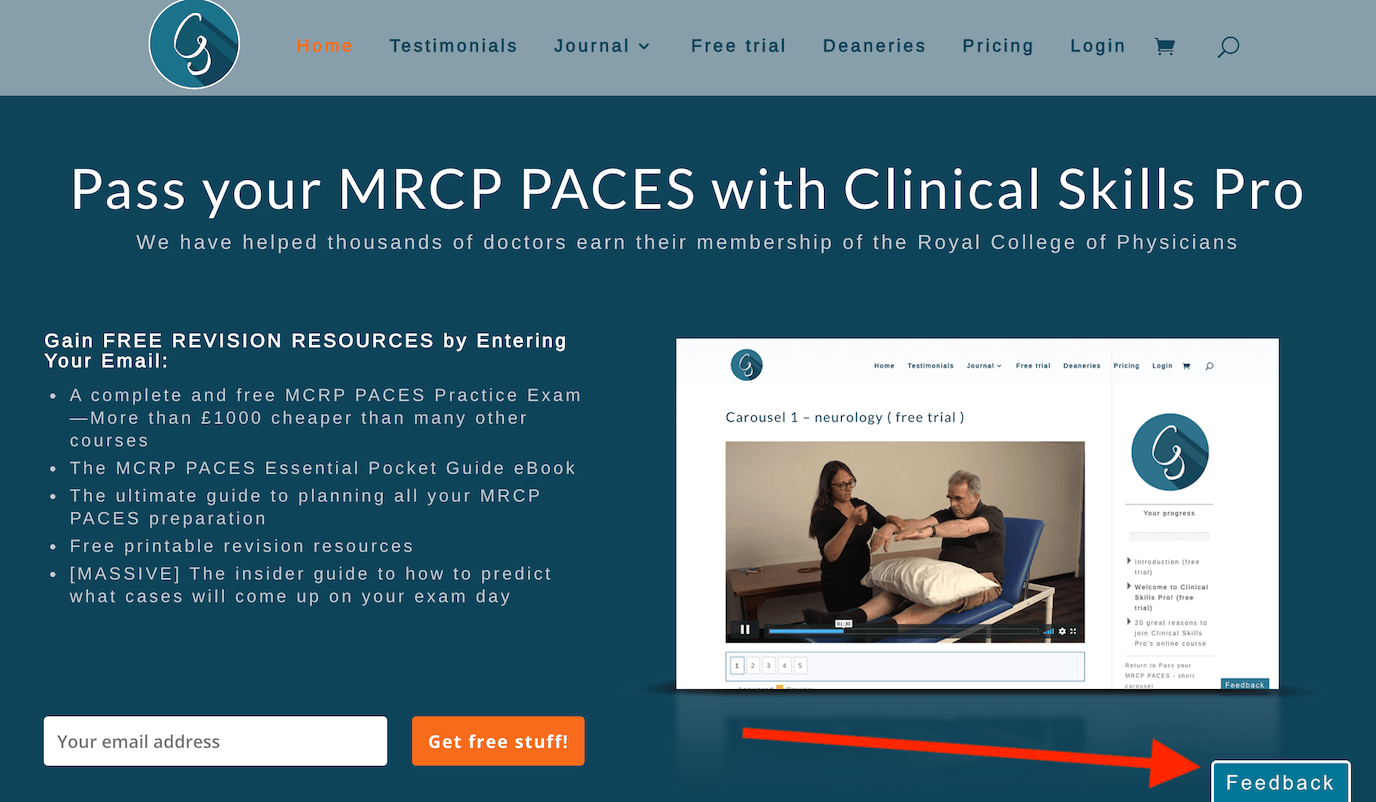
This feedback button sits at the bottom of the page:
Try Saber Feedback free for 30 days
Saber Feedback is easy to install, customise and connect to the tools your team already uses. It has the flexibility you need without the complexity that adds to your team’s workload.
Start your free trial, see pricing, or learn more about Saber Feedback.